
New to Inventory? Read the feature announcement for an overview of the workflow.
Open your inventory
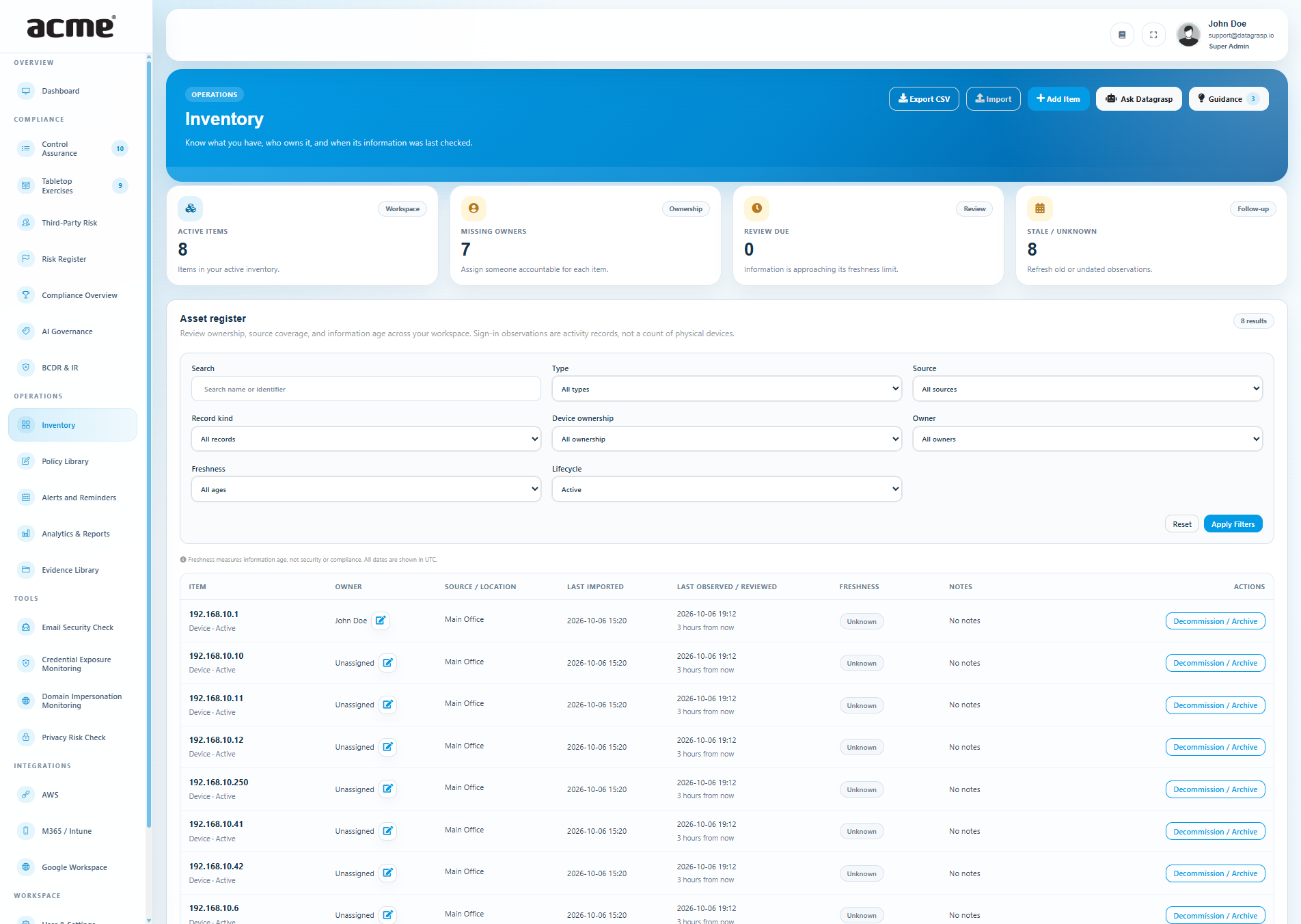
Go to Operations → Inventory in your client workspace. Keep a lightweight register of devices, servers, network devices, cloud resources, applications, and other assets, with accountable owners, locations, business criticality, and data classification.
Super Admins and Compliance Administrators can add, import, edit, review, and archive items. Auditors can read records and download templates and exports. Provider operators first select a managed client; Inventory belongs to that client workspace.
Use Add Item for a manual record and confirm that you checked its details today. For larger lists, start with a CSV or enable a supported source below. Inventory is a practical register: it does not install agents, manage software licenses, or automatically declare compliance controls complete. Matching Control Assurance requirements can use the evidence workflow below.
Import a CSV
- Choose Import and download the blank template or example. You can also download the CSV template and fictional example here.
- Keep the column names. The required columns are
external_id,name, andasset_type. Give each item a stable, unique external ID and keep it on future imports. - Use an asset type of
device,server,network_device,cloud_resource,application, orother. Optionalowner_emailmust identify a user in this workspace. Uselow,moderate,high, orcriticalfor criticality, andpublic,internal,confidential, orrestrictedfor classification. - Save as UTF-8 CSV. Select CSV template and enter a stable source or site name, such as “Chicago office register.” Use the same name for later updates.
- Supply the original observation date in
observed_at, using an ISO 8601 timestamp with timezone such as2026-01-15T14:00:00Z. The optional report date fills only missing dates. Leave dates blank when unknown; uploading a file does not make its observations recent. - Choose Preview Import. Review additions, updates, and unchanged records, confirm the review checkbox, then choose Confirm Import.
The default limit is 10 MiB and 10,000 records. Blank optional fields preserve existing values; clear a value in the item editor when needed. Older observations cannot replace newer data. Archived items remain archived until explicitly restored from the register or their detail page.
Previews expire after 30 minutes. If the source changes while you review, upload the report again. No records are saved until you confirm a valid preview.
Import a local Nmap report
Install Nmap on your workstation and connect to the network you are authorized to inventory. Replace the example subnet with your own:
nmap -sn -oX inventory-discovery.xml 192.168.10.0/24- In Inventory, select Import → Nmap XML.
- Enter a stable site name, upload
inventory-discovery.xml, and open the preview. - For each IP-only observation, choose to create an item or update an item previously seen at the same IP in that source. An IP address alone does not establish a device's identity.
- Review the proposed values and confirm the import. Use the same site name for later discovery reports.
This command discovers responding hosts without a port scan. Sleeping or filtered devices may not appear. The importer uses hosts marked up and the report's scan time. Reports with IP-only hosts allow up to 500 such hosts per review, or a lower limit shown in your import dialog. Split larger reports.
Datagrasp imports the XML; it does not run network scans. The standard Nmap stylesheet declaration is discarded without loading it. External XML definitions and entities are rejected. Re-importing an identical completed Nmap report does not create another set of items. See the Nmap XML reference for the report format.
Connect cloud and endpoint sources
First configure and validate the connection under Integrations. Then open Inventory → Sources and select the discovery options and choose Save & Collect for that connection. Each source is opt-in. The integration guide covers connection setup.
- Google Workspace: choose managed ChromeOS (Expanded scope and
admin.directory.device.chromeos.readonly), company and personal Cloud Identity endpoints (cloud-identity.devices.readonly), or successful login observations (admin.reports.audit.readonly). Enable the corresponding Google APIs and grant domain-wide delegation for selected scopes, prefixed withhttps://www.googleapis.com/auth/. Endpoint and login options also work with a connected Directory Baseline integration. This does not inventory Google Cloud resources. - Microsoft 365 / Intune: choose Intune devices, including personal devices (
DeviceManagementManagedDevices.Read.Alland Intune licensing), Entra registered devices without requiring Intune enrollment (Device.Read.All), or successful sign-in observations (AuditLog.Read.Alland sign-in log licensing). Grant application permissions and administrator consent for selected feeds. - AWS: EC2 instances and RDS databases in the integration's configured region, plus S3 buckets across the connected account. Use Expanded or Organization scope. The assumed role needs
ec2:DescribeInstances,rds:DescribeDBInstances, ands3:ListAllMyBuckets. Previously installed roles may need their policy updated. Inventory does not enumerate every region or every organization account.
Use multiple sources together
You can combine all three cloud connections with manual entries, CSV and Nmap in one workspace. Each source keeps its own history and freshness. Existing sources retain their earlier discovery options until you change them.
For example, collect Workspace endpoints and AWS resources, import a local office Nmap report, and add business applications manually. Enable and review each source separately, then use the Source filter to check coverage. Datagrasp does not merge records across providers automatically; review possible duplicates on the item detail page.
BYOD / Personal means the provider reports personal ownership. Devices may also be marked Company-owned or Ownership unknown; being unmanaged does not prove personal ownership. Provider accounts remain separate from the accountable owner you assign in Inventory.
Sign-in observations cover the last seven days, up to 1,000 successful events per provider per collection, subject to provider availability. They are account activity records, not verified unique devices. The same event is not added twice, and IP addresses never merge devices. Older observations remain for review and can be archived. Use Record kind and Device ownership filters to focus the register. Detailed exports preserve these labels. Cross-provider records remain separate for review.
Enabled sources collect daily in the background. Sync Now requests another collection. Sources show the last attempt, last complete collection, and any partial or failed result. A partial collection does not claim complete coverage. Missing resources and failed collections retain existing items for review.
Disabling a source stops new collection and keeps its records. If an account, tenant, or configured region changes, enable the current connection from Sources; the old source's records remain available.
Support Control Assurance
Open a Control Assurance domain. Requirements that ask for a supported asset inventory show matching active record counts and age warnings. Shared Guidance explains the connection. For an inventory requirement, choose Use inventory evidence, review its scope, and confirm Attach Snapshot & Add Note.
Datagrasp saves a CSV and readable coverage summary in that control's evidence folder and appends a dated note. Existing assessor notes and control status remain unchanged. The evidence retains original observation dates, accountable owners, source limitations and missing information. Sign-in observations and archived items are excluded. Application controls use application records; device discovery does not prove a complete software inventory.
A requirement can use an explicit Inventory scope maintained in the control library, or a suggestion from its wording. The control row identifies which connection is in use. A mapped source still needs relevant records and an assessment of coverage; it does not mark the requirement complete.
For Datagrasp staff: in the admin portal, open Frameworks → Edit → Run Health Check. Review the Inventory and cloud recommendations with Preview → Apply, then run the check again. Running Health Check alone does not save mappings. Staff can also set Inventory Evidence Source in the shared requirement editor. Mappings belong to that shared requirement and may affect its use across frameworks; client workspace administrators do not edit the shared library.
Inventory mappings select relevant register records. Cloud mapping suggestions connect supported integration findings to control requirements. Both support an evidence review; neither completes a control automatically.
Snapshots are fixed at capture time and do not refresh automatically. Capture again after relevant changes. An unchanged capture on the same day reuses the existing snapshot. Save pending checklist edits before attaching evidence.
Save pending checklist status edits before attaching a snapshot. Repeating an unchanged capture on the same day reuses its files and note. Capture again after material changes to retain a new version; old evidence stays available. Auditors can read the support and files, but workspace administrators attach evidence. The assessor still decides whether the evidence satisfies the full requirement.
Understand freshness and dates
Freshness measures information age, not security posture or compliance. The default thresholds are:
- Automatic sources: Current through 7 days; Review Due after 7 through 30 days; Stale after 30 days.
- CSV, Nmap, and manual entries: Current through 30 days; Review Due after 30 through 90 days; Stale after 90 days.
- Unknown: no usable observation or review date is recorded.
Last imported records when data entered Datagrasp. Last observed records the source observation, including the upstream device sync date when provided. Last human review records a person's review. Only manual entries use that review date for freshness. Reviewing an imported device does not refresh its telemetry. Dates in the interface are UTC.
Review, archive, and export records
Filter by name, identifier or serial number, type, source, owner, freshness, and lifecycle. The summary cards count active items across the workspace; the table's result count reflects your filters.
The register includes a Notes column. Choose Edit owner & notes in a row to assign a workspace user, clear an assignment, or update useful context without leaving your filtered view. Notes are shown as a short preview; open the item for the full text. These edits do not change observation dates.
Open an item for side-by-side Record details and Business context, which stack on smaller screens. Record a serial number, edit business context, or record a human review. A recorded serial number survives imports; clear it to use the source-reported value. The Activity Log shows new changes to that item with the actor, time, and before/after values. Historical changes from before activity tracking are not reconstructed. Use Decommission / Archive in the register’s Actions column after Notes, or on the detail page. Archive keeps the record and history while removing it from active totals. Use the Archived lifecycle filter to find an item and restore it. Possible duplicates are suggestions; records from different sources are not automatically merged.
Export CSV downloads the current filtered register in template columns. Filter to one source when preparing a repeat import, and use its original source name. Export with Import Details adds source, import dates, review date, and freshness for reporting; its extra columns are not accepted by the CSV importer.
Use Guidance for workspace ownership gaps, stale information, and source coverage. Ask Datagrasp can explain the inventory and the item you are viewing. It is read-only and scoped to your current workspace; it does not change records. A workspace summary remains available when the AI service is not configured. Auditors can use both drawers and read notes, while edits remain restricted to workspace administrators.
Troubleshooting
- No inventory evidence action: confirm Inventory is available in the client workspace and contains active records of the required type. Ask Datagrasp staff to review the requirement mapping if it is absent or excluded. Sign-in observations and archived records do not qualify; application requirements need application records.
- Inventory is missing: open a client workspace, not the provider home console. If it is still absent, contact your workspace administrator or Datagrasp support to check availability.
- CSV rejected: use the template headers, valid types, unique IDs, workspace owner emails, and dates no later than now. Export a fresh UTF-8 CSV if quoting or encoding is invalid.
- Preview expired or changed: upload the file again and review the new preview.
- Collection failed or remains queued: check integration settings and permissions, then retry. If it remains queued, contact support to check background processing.
- Old data looks stale after upload: this is expected when the original observation is old. Collect a new report or source observation; changing ownership does not refresh device data.