
Guidance & Ask Datagrasp
Datagrasp includes two built-in assistance layers in the client portal: Guidance and Ask Datagrasp. They are designed to help users understand what needs attention next without leaving the current workspace.
Guidance
Guidance is the proactive layer. It surfaces contextual recommendation cards based on what is happening in the current workspace and on the current page or workflow.
- Context-aware recommendations: Guidance can reflect checklist items, policy coverage, evidence gaps, open risks, vendor context, cloud integrations, email security findings, credential exposure findings, and AI governance signals.
- Action-oriented prompts: Cards are meant to help users decide what to focus on next instead of forcing them to search the workspace manually.
- Workflow-linked actions: Guidance may include suggested next status and direct links to the right records, pages, or sections.
Ask Datagrasp
Ask Datagrasp is the interactive AI-powered assistant. It is a read-only security and compliance copilot for questions about the current page, the current client workspace, and recommended next steps.
- Workspace questions: Ask for summaries of gaps, open items, risks, evidence, policies, vendors, integrations, and what needs attention next.
- Interpretation support: Use it to understand findings, explain risk context, and identify the right Datagrasp section to visit next.
- Scoped access: Ask Datagrasp is limited to the current client workspace only. It does not expose cross-company or platform-wide data.
- Read-only behavior: It never changes records, uploads files, or updates statuses on behalf of the user.
Inventory
Open Operations → Inventory to track assets, accountable owners, and information age. Add records manually, preview CSV or Nmap imports, or enable daily collection from Google Workspace ChromeOS, Intune managed devices, and AWS EC2/RDS/S3. Freshness describes the age of your information, not security or compliance.
Follow the Inventory guide for templates, Nmap steps, connector coverage, review and archive actions, and exports.
Policy Library
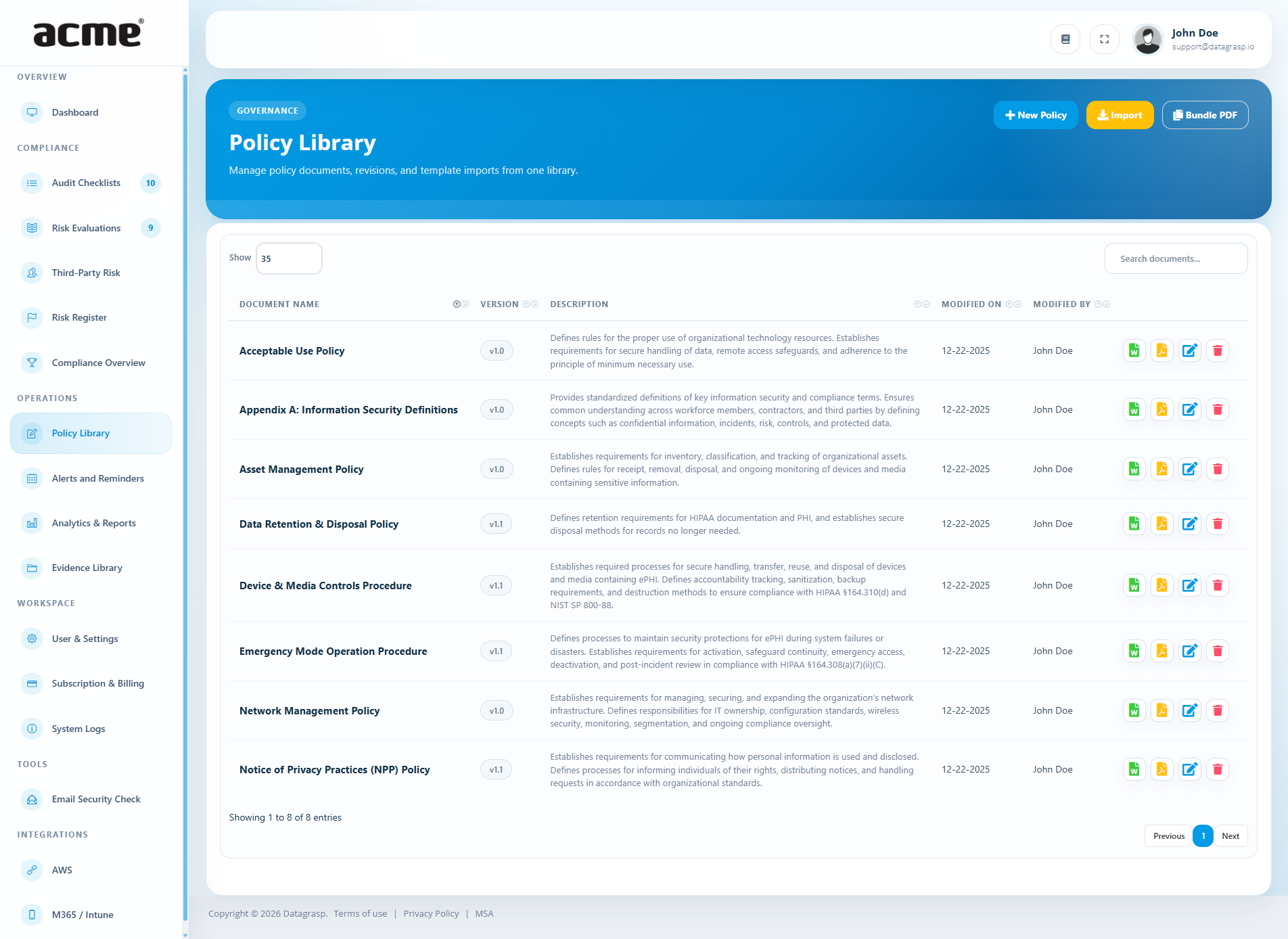
Store, create, and manage your organization’s policies in one place. You can write your own documents or import ready-made templates to help you get started. Policies can be downloaded in Word or PDF format when you need to share them with staff, auditors, or clients.
- Create policies: Build new documents tailored to your organization.
- Import templates: Use pre-built policies to speed up setup. You may choose to replace an existing policy with the same name.
- Edit and maintain: Update policies as your practices evolve.
- Edit and version history: Track policy versions and recorded history, including when the document was last updated and by whom. An edit timestamp does not establish that a formal review or approval occurred.
- Export: Download any policy as a Word or PDF file with your organization’s name and cover page.
- Clean view: Search, filter, and sort to quickly find documents.
How to use it
- Go to Organization → Policy Library.
- Select Create to write a new policy, or Import to choose from templates.
- Edit the content to match your practices and save.
- Download as Word or PDF when you need to distribute it.
Planned: Policy approvals and exceptions will add approval records tied to specific versions and time-limited exceptions. Recorded policy reviews will track review dates independently of edits. Policy Health currently measures freshness from the last update; these planned workflows are not yet available.
Alerts & Reminders
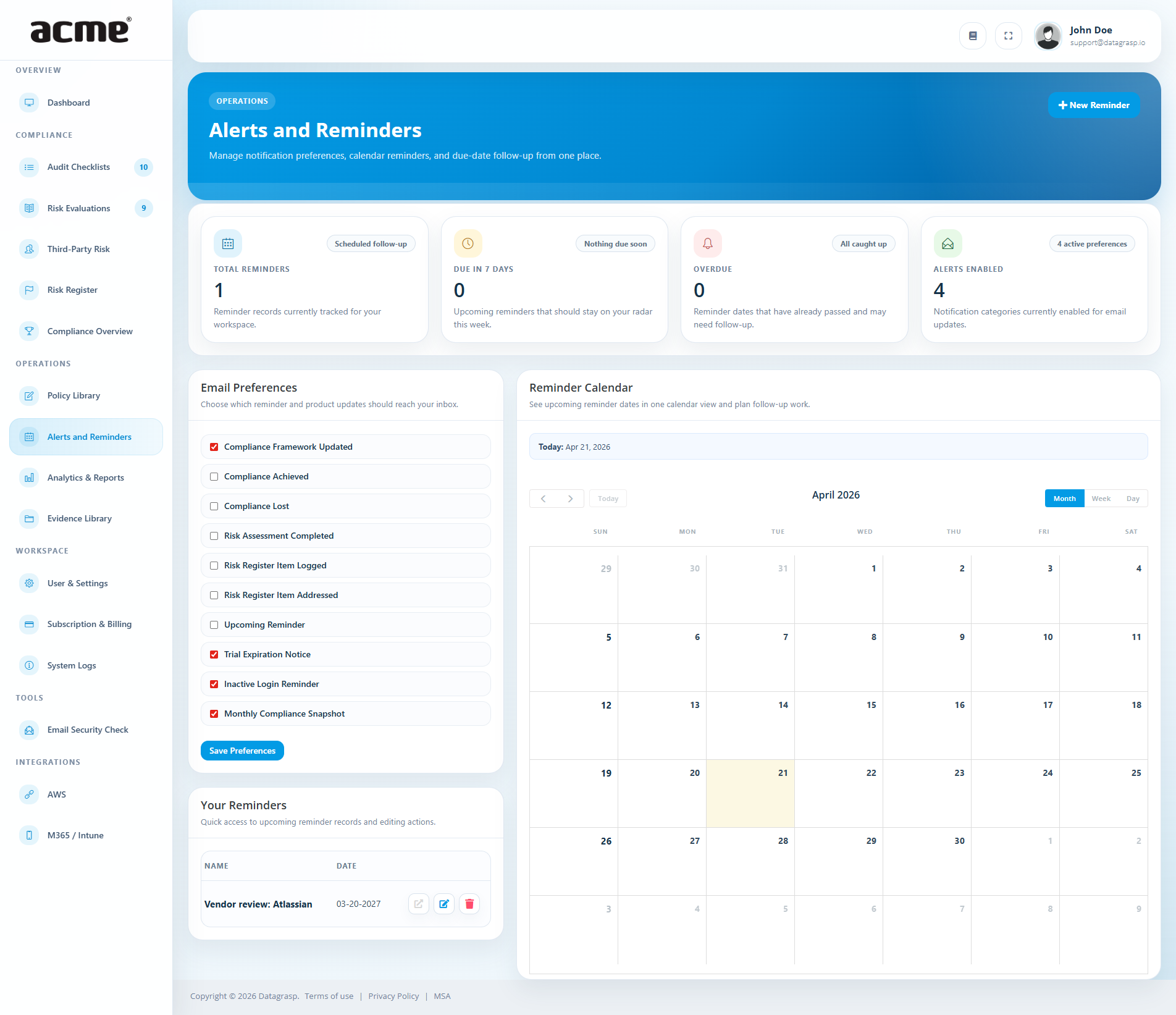
Use Reminders to keep track of important dates related to your compliance work. You can set personal reminders for tasks and deadlines, and update your notification preferences to control which alerts you receive.
- Create reminders: Add reminders for upcoming activities or due dates you don’t want to miss.
- Calendar view: See all your reminders in a monthly calendar for a visual overview.
- Notification preferences: Choose which alerts you receive, such as badge updates, reminders approaching, or risk activity.
How to use it
- Go to Organization → Alerts & Reminders.
- Select Create Reminder to add a new item.
- Choose the date and optional link for reference, then save.
- Return anytime to edit, complete, or remove reminders.
- Open Notification Preferences to enable or disable alert types.
Analytics & Reports
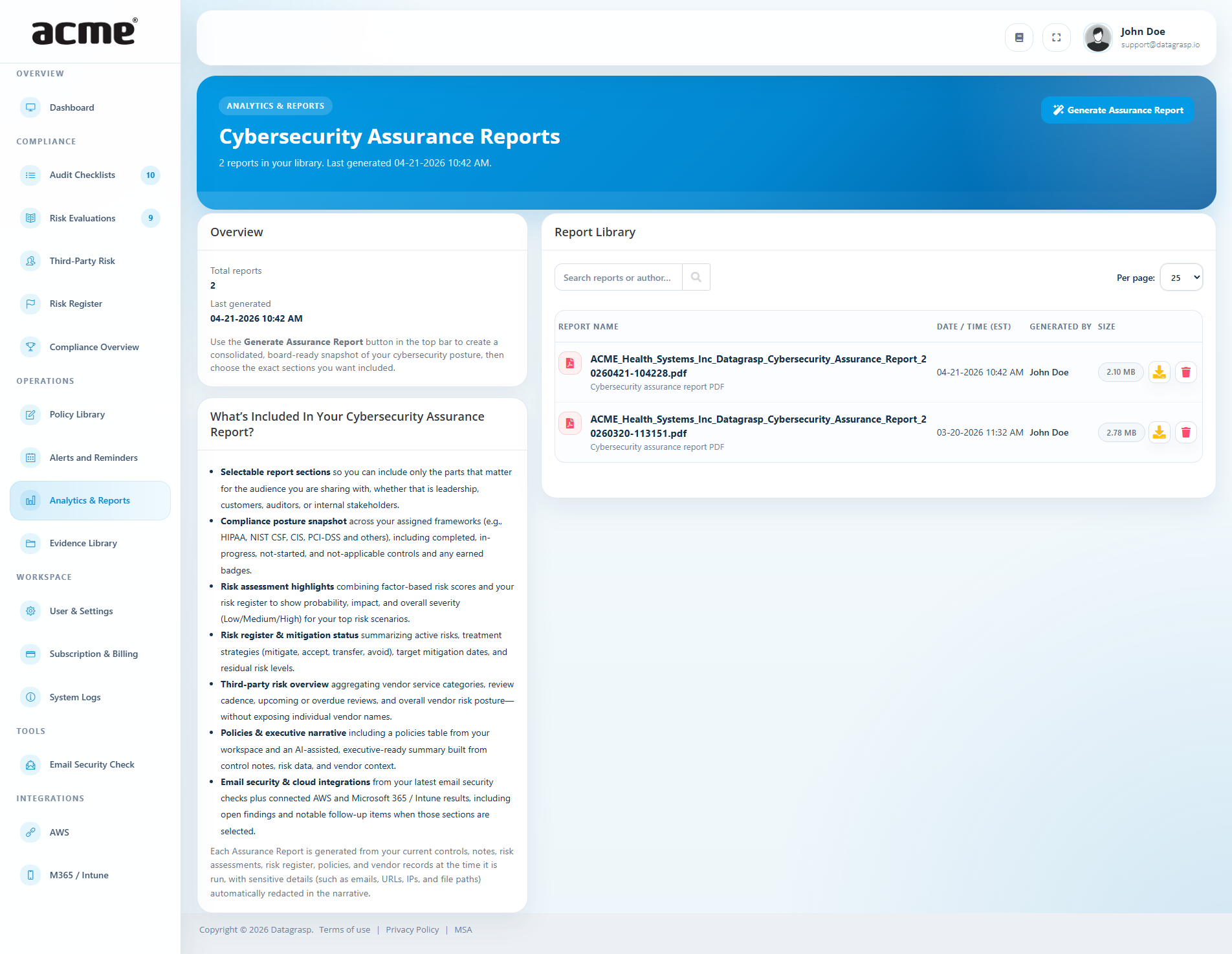
The Analytics & Reports section gives you a central place to view, generate, and download key reports that summarize your organization’s compliance progress and activities. These reports are useful when sharing updates with management, answering vendor due-diligence requests, or preparing for audits.
- View and download reports: Access previously created reports at any time for internal or external requests.
- Create new AI-assisted report: Generate a professionally written report that clearly reflects your organization’s current status and progress.
When to use this section
- When a partner, vendor, or customer asks for proof of your compliance posture.
- To brief leadership with a clear progress snapshot.
- Before renewing contracts or engaging with new vendors who request security documentation.
Evidence Library
The Evidence Library keeps all your supporting compliance documents in one place. Store items such as policies, screenshots, vendor documents, and reports so they are easy to locate when needed. You can upload files, organize them, and keep their freshness and control relevance visible over time.
- Centralized storage: Keep all evidence in a single, organized location.
- Easy access for audits or vendor requests: Quickly find documents when someone asks for proof of compliance.
- Keep evidence up to date: Refresh items regularly so your documentation stays accurate.
- Evidence Health: See freshness across the shared library so aging evidence can be reviewed before it becomes stale.
- Evidence Fit: For evidence attached to an active Control Assurance control, analyze how directly the file supports that control using its document, control, and note context. Results are saved, traceable, and can be re-run when the evidence changes.
Planned: Evidence Requests & Review will add assigned collection requests, deadlines, and human review decisions. Existing Evidence Fit analysis supports review but does not approve evidence or establish control compliance.
Training — planned
Planning preview, not yet available. Native Training is planned as a focused workforce-training module inside the existing Datagrasp portals. Datagrasp staff will manage the course library; authorized workspace administrators will assign published courses and report on training within their own company.
- For learners: My Training will show assigned courses, due dates, saved progress, completion history, and available Certificates of Completion. Learners will complete required sections and acknowledgments, take assessments when required, and resume unfinished courses.
- For workspace administrators: Assign courses to selected users, set deadlines and renewal cadence, review overdue or expiring training, view transcripts and certificates, and export filtered CSV reports. Waivers and cancellations will require a reason and retain history.
- Reliable records: Each assignment will reference a specific published course version. Assessments will be graded on the server, and issued certificates will preserve the learner, company, course, version, score, and dates recorded at completion.
- Recurring training: Annual or month-based renewal will create a new assignment while preserving prior progress, attempts, completions, certificates, and evidence.
- Supporting evidence: Successful completions will create workspace Evidence Library artifacts. Optional framework and control mappings will provide context without automatically marking a control compliant.
Initial course topics are planned around HIPAA workforce privacy and security awareness, general security, privacy and data handling, safe AI use, incident reporting, and policy awareness. Certificates will be titled Certificate of Completion; they will not represent HIPAA certification or guarantee that one course meets every organization’s training obligations.
Phase 1 will include acknowledgments within published courses. Client-authored course builders and organization-specific Policy Library acknowledgment workflows are later enhancements, alongside learning paths, phishing simulations, interactive Labs, human-risk scoring, and SCORM. See the Training roadmap for the planned scope; timing and availability remain subject to change.
Users & Settings
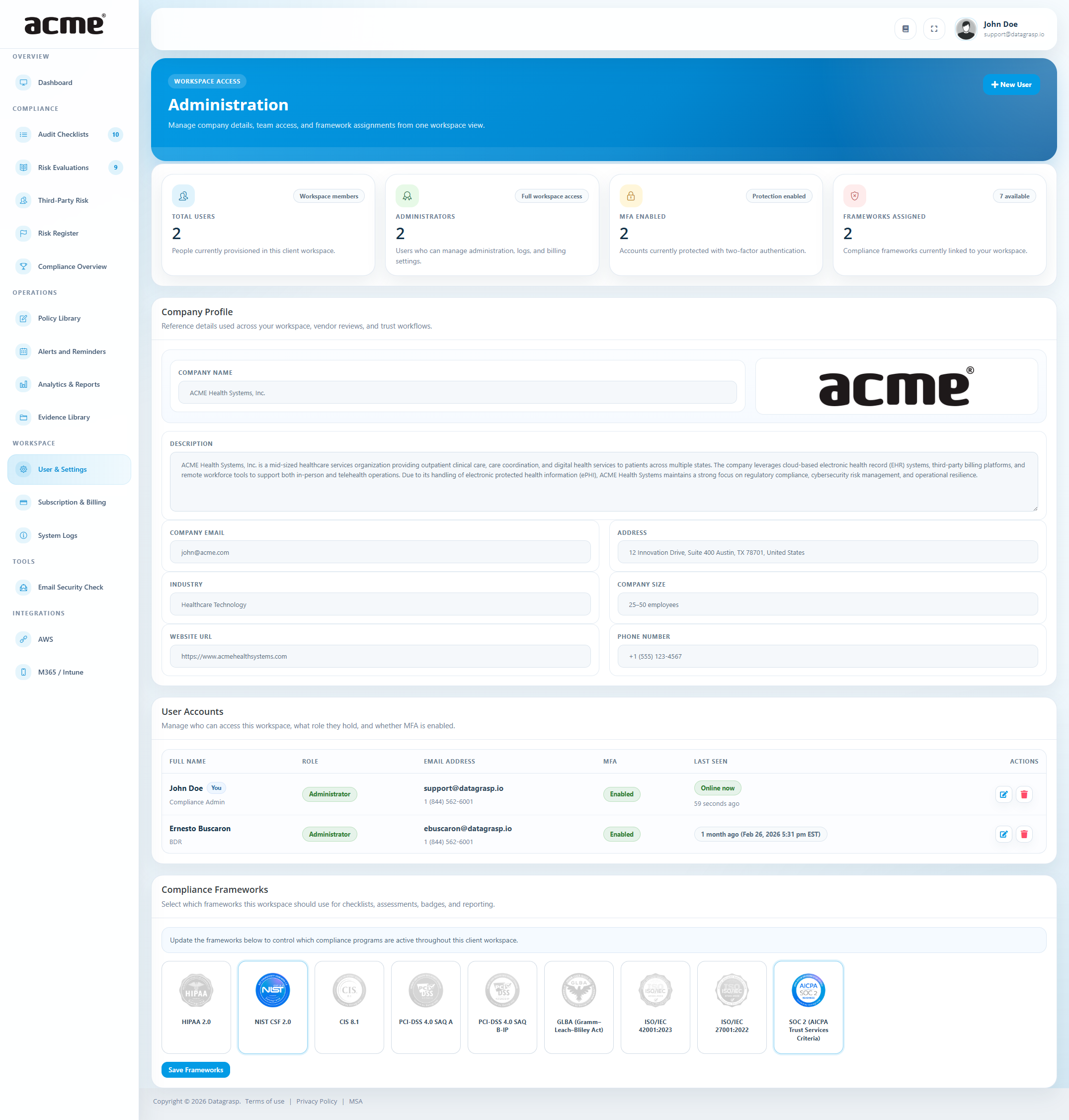
The Users & Settings area allows you to manage your organization details and user access. You can update your company profile, add or remove users, and assign the right level of access to each person.
- Manage users: Add new users, remove access, or update permissions.
- Organization details: Update your company profile and brand information.
Subscription & Billing
This section provides information about your subscription and billing details. You can review your current plan, view payment history, and update your billing information when needed.
- Plan details: See your current subscription and included features.
- Billing history: View past invoices for your records.
- Update payment information: Make changes to your payment method when required.
System Logs
System Logs track important actions taken by users in your workspace. This helps maintain accountability and provides a record you can reference if questions arise about changes or updates.
- Track user activity: See who made updates and when.
- Useful for audits and reviews: Have a clear record of actions if you need to trace changes.
- Promotes accountability: Helps ensure good record-keeping across your team.