
AWS Integration
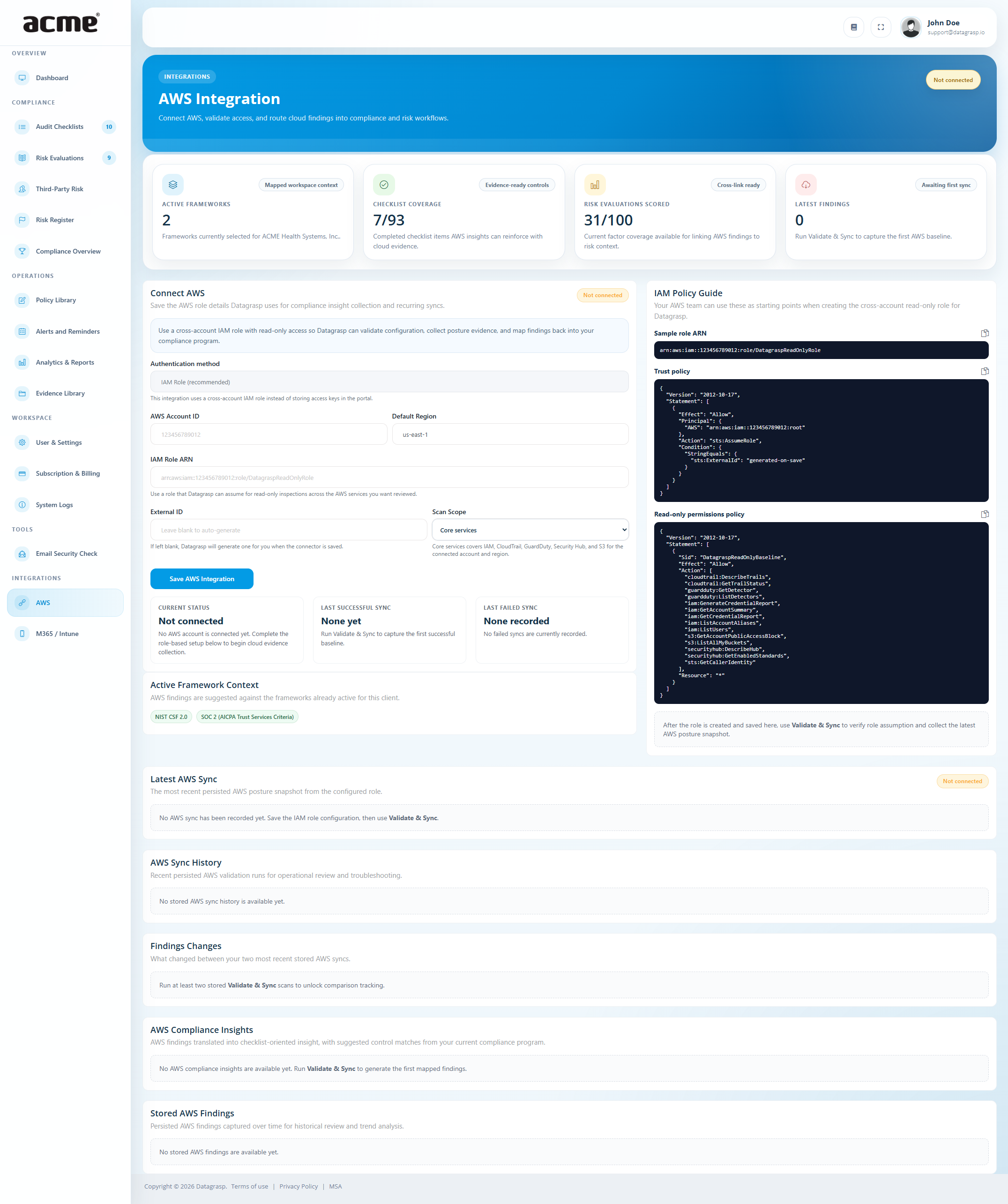
The AWS Integration connects an AWS account to Datagrasp so your team can validate access, collect cloud posture evidence, review findings, and route relevant items into compliance and risk workflows.
This integration is designed for organizations that want better visibility into cloud security posture without manually gathering screenshots, service checks, or fragmented configuration notes.
- Role-based connection: Datagrasp stores the AWS account ID, IAM role ARN, external ID, default region, and selected scan scope.
- Validation and sync: After setup, Datagrasp validates the role and starts a sync to collect the first cloud evidence snapshot.
- Queued processing: Validation and sync can be queued in the background so the workspace updates after processing completes.
- Findings and evidence: Datagrasp stores findings from the latest sync and uses them to support compliance follow-up.
- Workflow routing: Insights can be attached to checklist items, evidence can be attached to controls, and findings can be sent to the Risk Register.
- Ongoing syncs: AWS integrations support recurring synchronization so posture can be reviewed over time.
What AWS integration does
AWS integration is built to support evidence collection and cloud security visibility inside Datagrasp.
- Tracks connection status: Not connected, awaiting validation, sync queued, connected, or validation failed.
- Supports scan scope selection: You can configure the connector based on the scope Datagrasp should use for cloud review.
- Stores sync results: Datagrasp keeps the latest sync details, including findings and recent history.
- Surfaces top findings: The dashboard and integration area can highlight current cloud issues needing attention.
- Supports evidence workflows: Teams can attach notes and evidence from AWS insights directly into compliance activities.
How to use AWS integration
- Go to Integrations → AWS.
- Enter the AWS account ID, IAM role ARN, optional external ID, default region, and scan scope.
- Save the integration so the connector is marked as awaiting validation.
- Run Validate & Sync to queue validation and begin collecting the first cloud evidence snapshot.
- Review the latest sync, findings, and any follow-up actions generated from the integration.
- Attach relevant insights to checklist items or send findings to the Risk Register as needed.
Microsoft 365 / Intune Integration
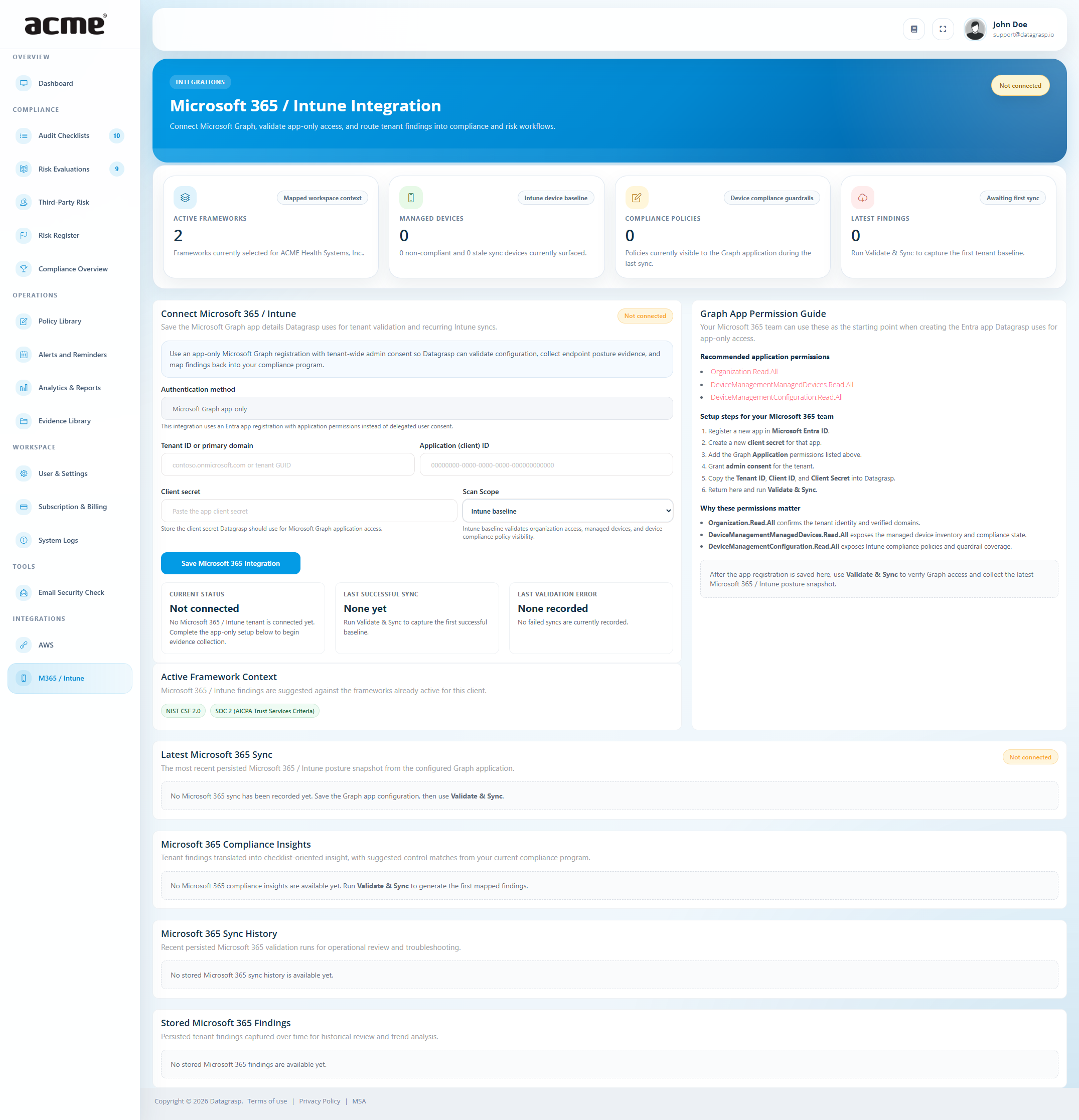
The Microsoft 365 / Intune Integration connects Datagrasp to Microsoft Graph using app-only access so your team can validate tenant configuration, collect endpoint posture evidence, and route findings into compliance and risk workflows.
This is especially useful for organizations that need better visibility into managed devices, compliance policies, available services, and tenant-level endpoint posture without relying on manual exports or disconnected notes.
- App-only Microsoft Graph access: Datagrasp uses a Microsoft Entra app registration with application permissions instead of delegated user consent.
- Tenant-based configuration: The integration stores the tenant ID or primary domain, application client ID, client secret, and selected scan scope.
- Validation and sync: Datagrasp validates Microsoft Graph access and begins collecting the first Microsoft 365 / Intune posture snapshot.
- Queued processing: Validation and sync can be queued in the background so the workspace updates after processing completes.
- Findings and service visibility: Datagrasp stores findings and can summarize available or unavailable services from the latest sync.
- Workflow routing: Insights can be attached to checklist items, evidence can be added to controls, and findings can be sent to the Risk Register.
What Microsoft 365 / Intune integration does
Microsoft 365 / Intune integration helps your team connect endpoint and tenant posture information to the rest of your Datagrasp compliance workflow.
- Tracks connection status: Not connected, awaiting validation, sync queued, connected, or validation failed.
- Supports scan scope selection: Available scopes include Intune baseline, device compliance, and expanded review.
- Captures posture evidence: The integration supports collection of tenant findings and managed environment context from the latest sync.
- Highlights current issues: Findings can be reviewed and prioritized as part of ongoing security and compliance work.
- Connects to active frameworks: Findings can be used to support the compliance frameworks already active for the client.
How to use Microsoft 365 / Intune integration
- Go to Integrations → Microsoft 365 / Intune.
- Enter the tenant ID or primary domain, application client ID, client secret, and scan scope.
- Save the integration so the connector is marked as awaiting validation.
- Run Validate & Sync to queue validation and begin collecting the first Microsoft Graph posture snapshot.
- Review the latest findings, current status, and any available service or policy visibility returned by the sync.
- Attach relevant insights to checklist items or send findings to the Risk Register as needed.
Google Workspace Integration
The Google Workspace Integration connects the client workspace to Google Workspace so teams can review tenant configuration and security signals in the same compliance workflow as their other cloud evidence.
- Workspace posture context: Collect relevant Google Workspace settings and findings for review.
- Control assurance follow-up: Attach useful insights and evidence to the related Control Assurance work.
- Risk workflow routing: Send material findings to the Risk Register for accountable remediation.
- Workspace-scoped access: Keep the connected tenant’s information isolated to its Datagrasp client workspace.
- Go to Integrations → Google Workspace.
- Enter the required connection details and save the integration.
- Run the available validation or sync action, then review the resulting posture information and findings.
- Attach relevant insights to Control Assurance or route material findings to the Risk Register.