
Control Assurance
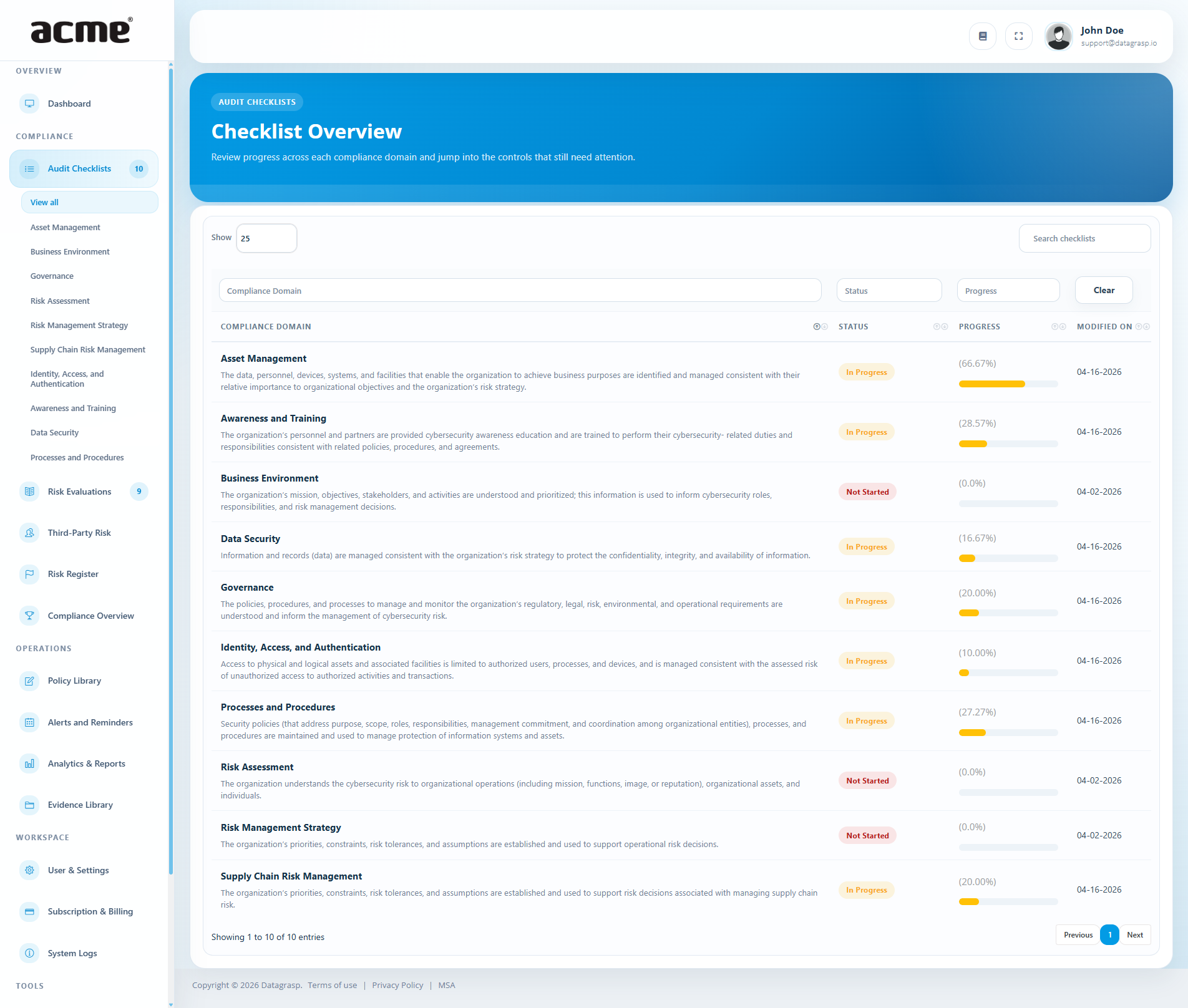
Guided Control Assurance activities mapped to supported frameworks (HIPAA, NIST CSF 2.0, CIS 8.1, PCI-DSS 4.0 SAQs, GLBA, ISO/IEC 27001:2022, ISO/IEC 42001:2023, SOC 2 Readiness, CMMC Level 1 SAR, NDAA Section 889, and more). Content is organized across ten domains:
- Asset Management
- Business Environment
- Governance
- Risk Assessment
- Risk Management Strategy
- Supply Chain Risk Management
- Identity, Access, and Authentication
- Awareness and Training
- Data Security
- Processes and Procedures
Marking progress
Each control has a status: Not Started, In Progress, Completed, or Not Applicable. Update one or many controls, then save your changes. Progress rolls up to the Dashboard (overall completion, per-framework completion, and domain tables).
Attaching evidence
- Some controls require evidence. When you mark these as Completed, you can attach files directly on the control.
- Evidence is organized by year and control so it’s easy to find during audits.
- If matching evidence already exists for a control, the checklist will reflect that so you don’t re-upload unnecessarily.
Inventory evidence
Matching inventory requirements can use records from Operations → Inventory. Choose Use inventory evidence, review the scope, and confirm Attach Snapshot & Add Note. Datagrasp saves a dated CSV and coverage summary in the control's evidence folder and appends a note while preserving existing notes and the control status.
The snapshot includes relevant active assets, original observation dates, ownership gaps, and source limitations. Sign-in observations and archived items are excluded. Snapshots do not refresh automatically; review and capture again after changes. See the Inventory evidence guide for mapping and review steps.
Notes
Add internal notes to any control (e.g., where to find a policy, who owns a follow-up, or links to internal procedures).
Linking to the Risk Register
Controls can be sent to (or linked with) the Risk Register using their Control ID. Current synchronization can update linked risk statuses when a control is completed or marked Not Applicable. Review the linked records and supporting evidence: a workflow update does not itself demonstrate control effectiveness.
Planned: Evidence-aware framework reuse and distinct risk/control outcomes will strengthen synchronization. Reusable implementations and repeatable audit engagements will add operational context and assessment history; these workflows are not yet available.
Tips for faster progress
- Work by domain: Tackle one domain at a time to drive visible gains in the Dashboard.
- Attach once, reuse: Upload policy and evidence packs that satisfy multiple controls across frameworks.
- Assign owners: Keep category ownership clear so updates flow weekly without blockers.
Datagrasp Sentinel — planned
Planning preview, not yet available. Sentinel will provide a saved audit-readiness simulation for an assigned framework, answering: “Can this requirement be defended today using records available in this Datagrasp workspace?”
- Run the Audit: Super Admin and Compliance Administrator users will be able to start an Auditor Mode run for a framework assigned to the current workspace. Existing Auditor accounts will remain read-only and may view completed, authorized runs.
- Declaration and proof: Results will show checklist status separately from Evidence Confidence and defensibility. A completed checklist requirement may still be unsupported, weak, or conflicted; Not Applicable will remain the client-facing wording for that declared state.
- Explainable results: Deterministic scoring will evaluate available evidence and related records before any AI interpretation. Each result will identify the records considered, score components, gaps, contradictions, and what would resolve a challenged claim.
- Confidence bands: Evidence Confidence will range from 0 to 100, with higher values indicating stronger support: Unsupported (0–24), Weak (25–49), Moderate (50–74), Strong (75–89), and Highly Defensible (90–100). Conflicted will identify contradictory support separately.
- Saved history: Completed runs will retain immutable source snapshots, findings, scores, and rule/model versions. Later edits or deletions of underlying records will not rewrite those saved results.
Sentinel will recommend remediation without changing checklist, evidence, policy, risk, vendor, or finding records. AI explanations will be labeled as interpretation and limited to the workspace sources provided. Missing proof will be documented as a gap, not presented as evidence that was never collected.
Phase 1 will not certify compliance, replace an auditor, browse external sources, or recreate arbitrary historical posture before a saved run. What-If modeling, additional reviewer personas, and a full historical-posture interface are outside this phase. See the Sentinel roadmap for the planned scope; timing and availability remain subject to change.
Tabletop Exercises
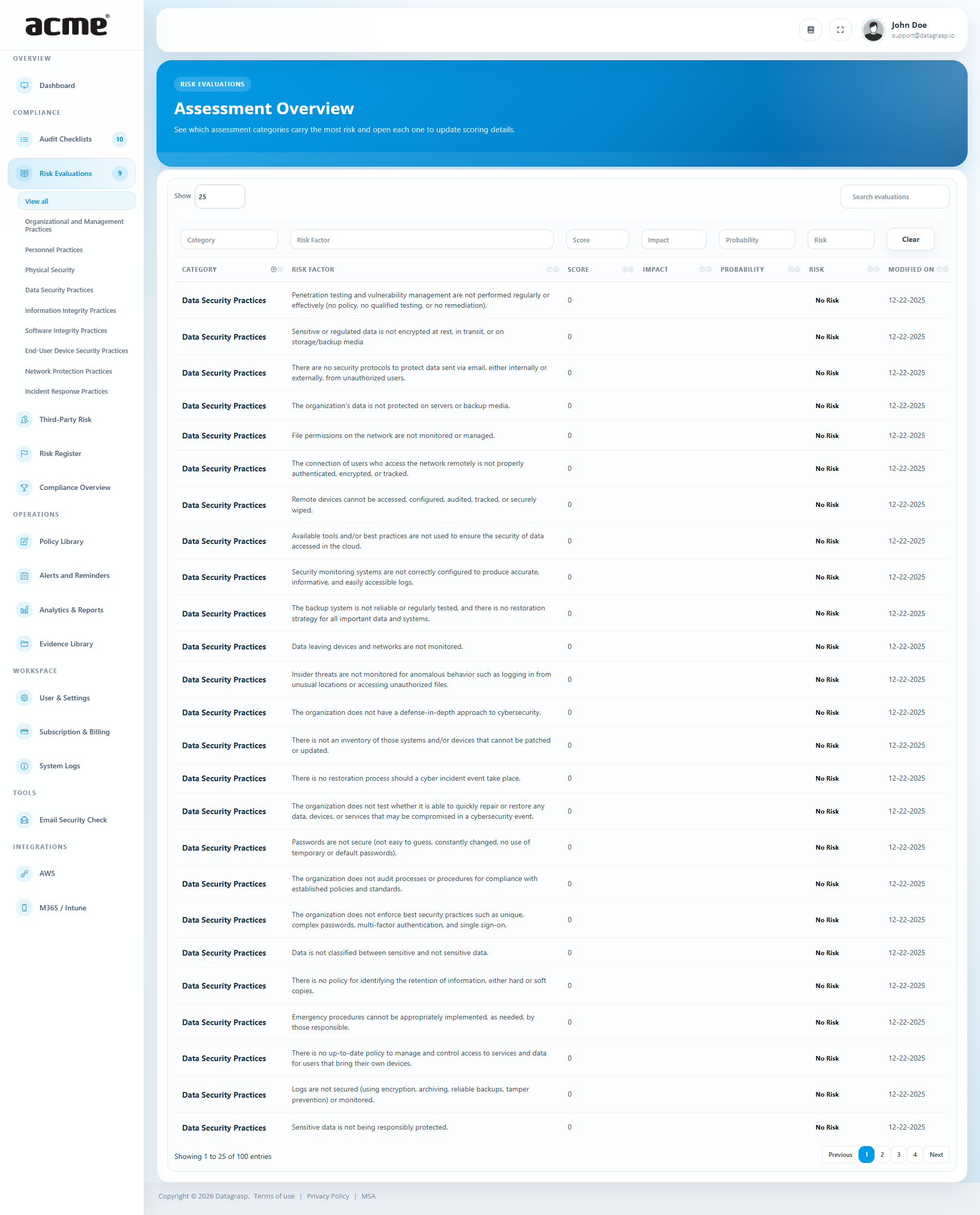
Evaluate real-world scenarios across structured categories and record Probability and Impact for each factor. Datagrasp converts these into a qualitative Risk Level (Low / Medium / High) and an overall Risk Score, helping you compare and prioritize.
Categories
Evaluations are organized by domain (e.g., Organizational & Management, Personnel, Physical, Data Security, Information Integrity, Software Integrity, Personal Computer Security, Network Protection, Incident Response). Admins can create additional factors within each category to fit your program.
How scoring works
- Probability & Impact are captured per risk factor.
- Datagrasp translates the combination into a clear Low / Medium / High risk level and a numeric score for sorting and trend analysis.
- Category summaries show average levels so you can see where risk concentrates.
Ownership & action
- Assign owners to follow up on higher-risk items.
- Add notes to capture context, planned mitigation, or links to internal procedures.
- When you’re ready, push an item straight to the Risk Register so it’s tracked alongside other risks with status and due dates.
Keeps your views in sync
When an evaluated item is linked to the Risk Register and later resolved (e.g., mitigated or accepted), you’ll see that reflected in Risk summaries and on the Dashboard (including Top 3 Risks and Organizational Risk).
Good practices
- Evaluate by category: Work one domain at a time to reveal patterns (for example, many Medium-Probability / High-Impact items in Network Protection).
- Capture evidence as you go: Link policies, procedures, or control references in notes to speed audit prep.
- Promote early: Push anything Medium/High to the Risk Register so it has an owner and due date.
Third-Party Risk (TPRM)
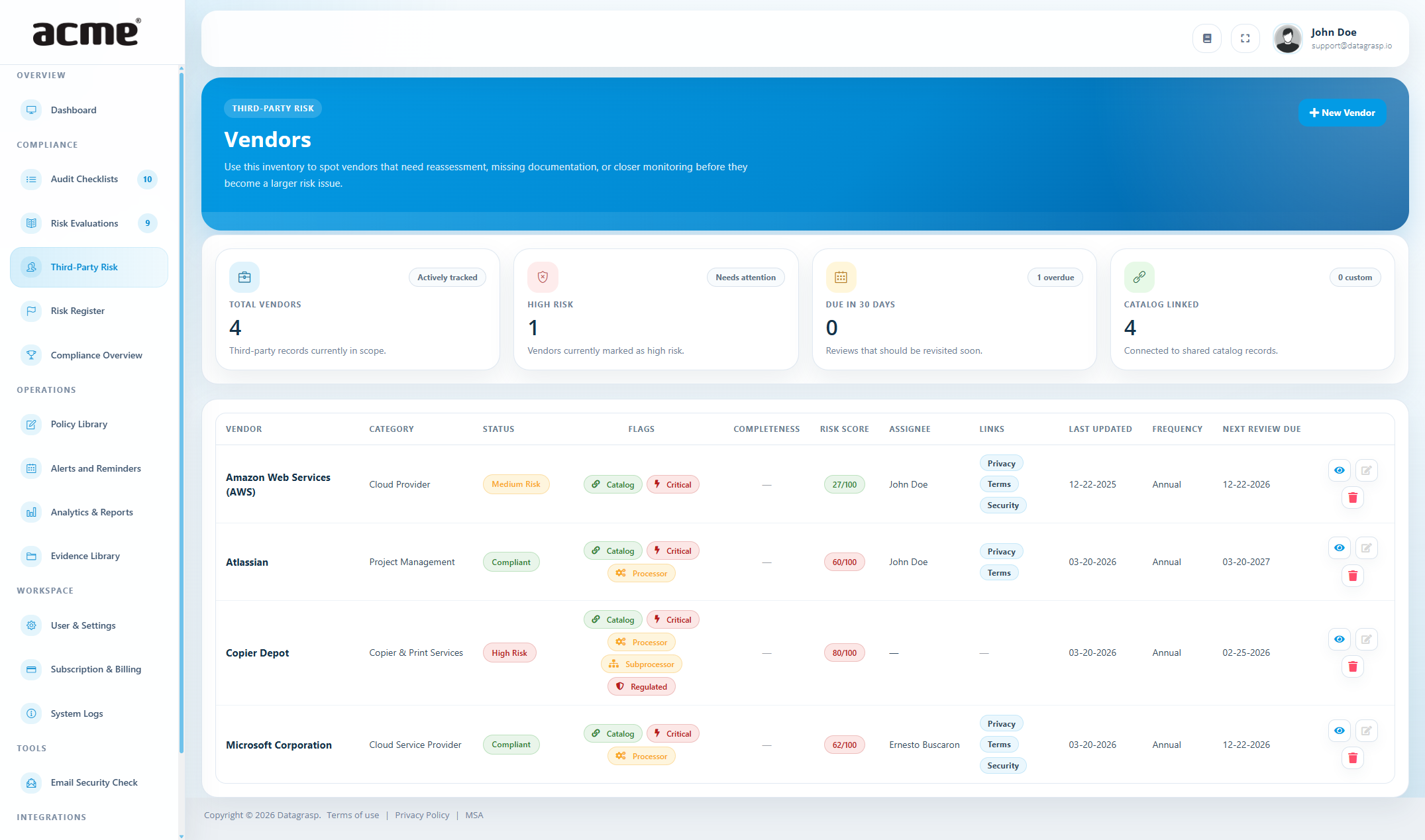
Keep all vendors in one place and understand their risk at a glance. The TPRM workspace brings together a vendor directory, questionnaires, evidence, and linked risks—with AI-assisted summaries and scoring to speed up reviews.
What you can track
- Vendor profiles: name, category, status, assignee, key links (privacy, terms, security), and review cadence.
- Questionnaires: send templates by email; replies are summarized and scored automatically, with a completeness % and a 0–100 risk score.
- Evidence: upload policies, reports, or certifications with validity dates; items show as current, expiring, or expired.
- Linked risks: push material findings straight to your Risk Register for ownership and follow-through.
AI-assisted analysis
When a vendor replies to a questionnaire, Datagrasp produces a short, plain-language summary and a numeric risk score (0–100, higher means higher risk). You’ll also see a completeness percentage so you know how much was actually answered.
- Quick read: a concise overview with the score included (“Overall risk score: n/100”).
- Consistency: the same scale across vendors, so comparisons are simple.
Statuses & scoring
- Vendor status: Compliant, Medium Risk, or High Risk—set this as you review.
- Risk score bands (guide): 0–29 Low, 30–69 Medium, 70–100 High.
Reviews & reminders
- Choose a frequency (quarterly, semiannual, or annual); the next review date is set for you.
- Assignees get a reminder with a direct link to the vendor when a review is due.
Evidence management
- Store files per vendor (e.g., SOC 2, ISO certificates, security policies).
- Track valid from/to dates and see whether items are current, expiring, or expired.
From finding to action
If a response uncovers a concern, use Push to Risk Register to create a risk with likelihood and impact. Assign an owner, pick a treatment (mitigate, transfer, accept), and track it to closure.
Risk Register
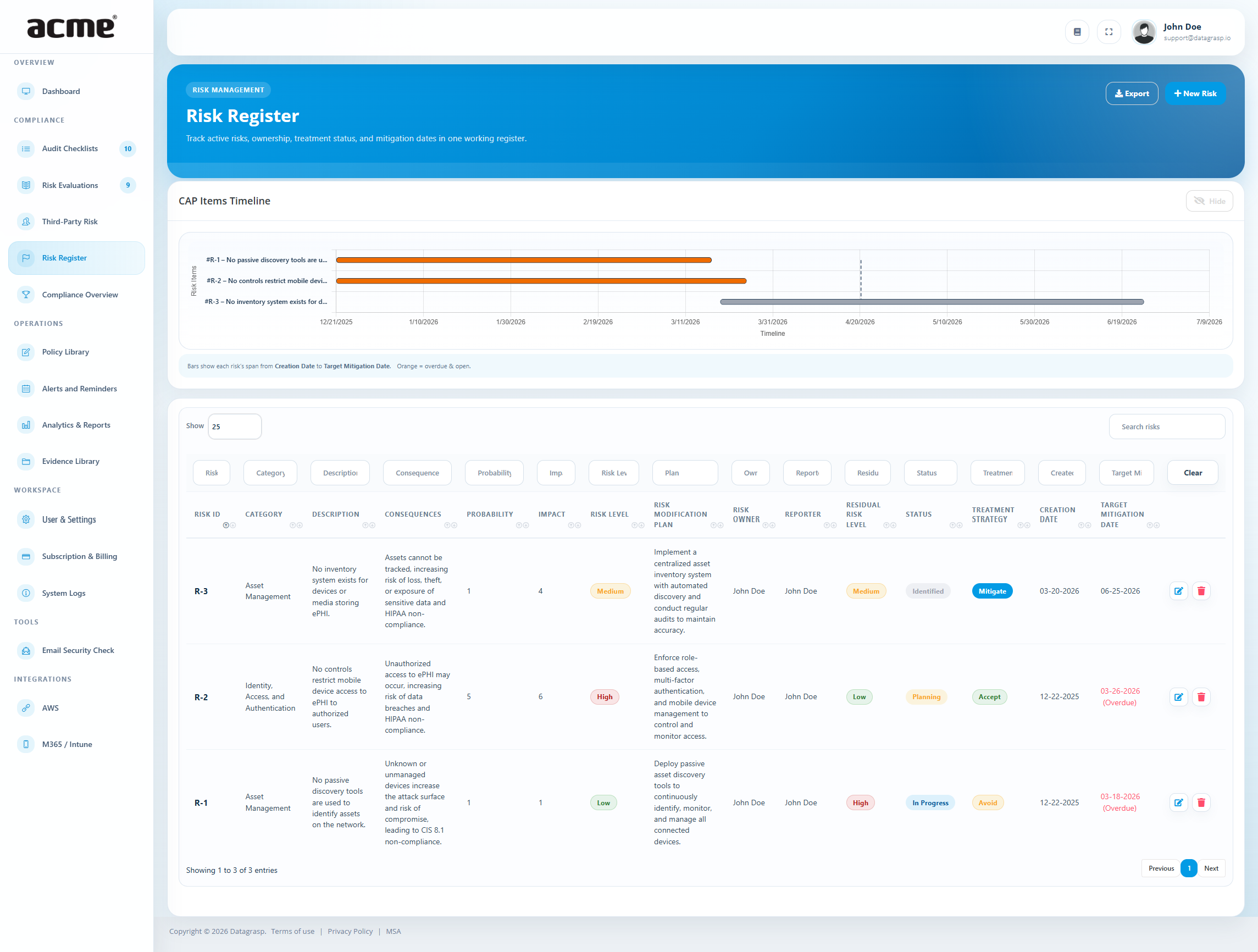
The Risk Register is your single place to capture issues, assign owners, set due dates, and track each item to closure. Every risk is given a unique ID (e.g., R-12) so you can reference it in reviews and audits.
How risks get into the register
- From Control Assurance: send any control to the Risk Register if it needs work or follow-up.
- From Tabletop Exercises: push significant factors directly into the register.
- From Vendors (TPRM): create a vendor-linked risk when questionnaires or evidence raise concerns (with optional “push to Risk Register” enabled).
- Manual entry: add a new risk for anything that doesn’t fit the above.
What each record includes
- Category (e.g., Operational, Information Security, Supplier).
- Description — a short statement of the risk (what might happen and why it matters).
- Probability & Impact — simple 1–5 ratings that produce an overall level (Low/Medium/High).
- Consequences — what would happen if the risk occurs.
- Treatment strategy — Mitigate, Transfer, Avoid, or Accept.
- Owner — the person responsible.
- Target date — when you plan to resolve or decide on treatment (overdue items are highlighted).
- Status — Identified → Planning → In Progress → Mitigated / Transferred / Accepted.
Working with linked items
Some risks are linked to a specific control or factor. Current behavior can mark a linked control complete when its risk is moved to Mitigated, Transferred, or Accepted. Risk acceptance or transfer does not prove that a control is implemented or effective; verify the linked control and evidence before relying on completion figures. Separating these outcomes is a planned improvement.
Views & tracking
- List view: search by keywords to quickly find items (e.g., category, description, or plan text).
- Timeline view: see start and target dates at a glance; overdue items are flagged in red to help you prioritize.
- Badges & Compliance: linked status changes can affect completion percentages and badges. These indicators describe recorded workflow progress and are not independent certification or proof of control effectiveness.
Compliance Overview, Badges & Trust Center
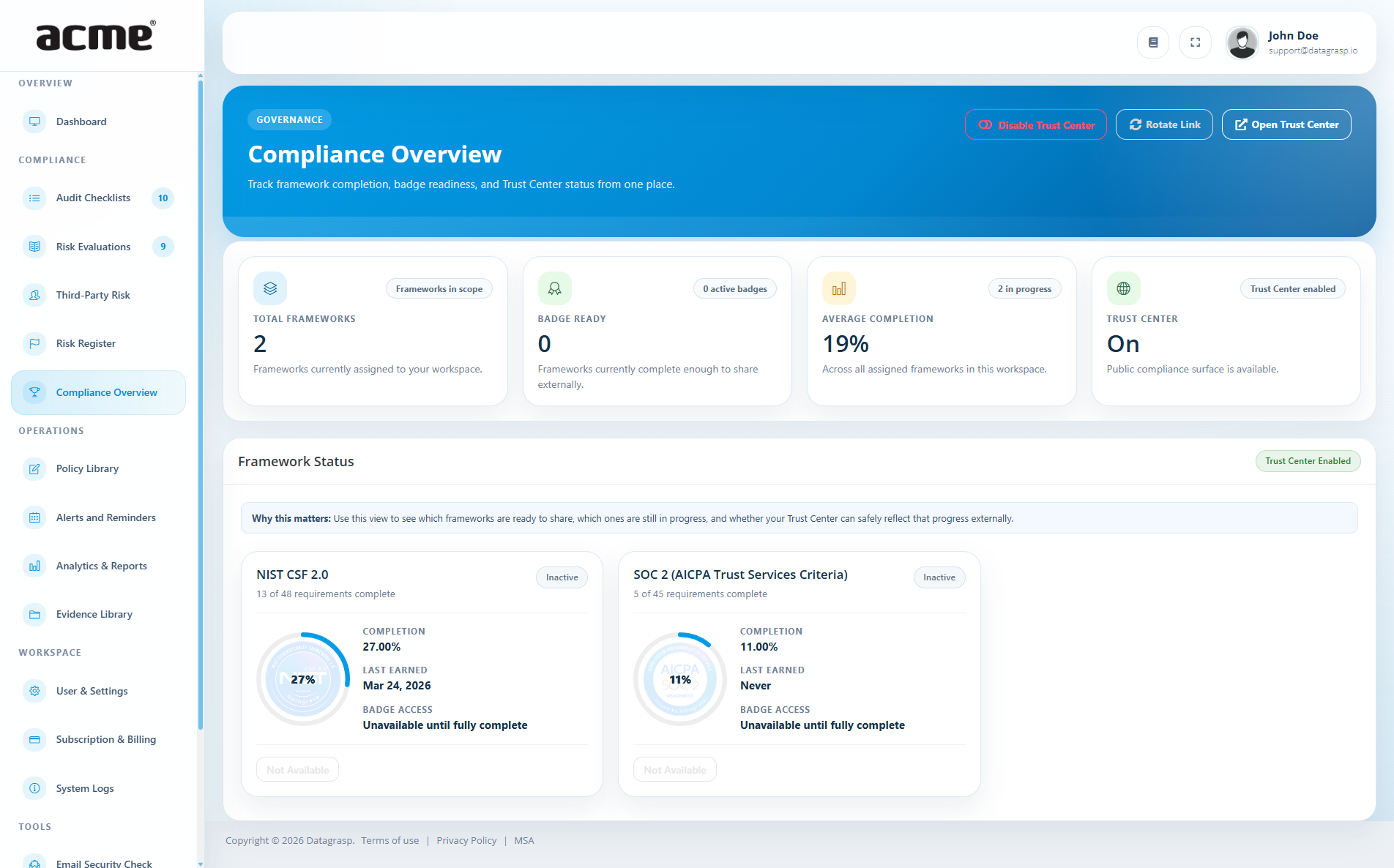
See where you stand for each framework at a glance. The Compliance Overview combines your Control Assurance and Tabletop Exercises to show clear progress toward completion. This progress also powers your public Trust Center, making it easy to demonstrate compliance to customers, partners, and stakeholders without extra work.
What you’ll see
- Progress by framework: a percentage that reflects how much you’ve completed.
- Breakdown: completed items vs. remaining items so you know exactly what’s left.
- Badges: when a framework reaches 100%, your downloadable Compliance Validation Badge appears on the Badges page and in your Trust Center.
How progress is calculated (plain language)
- Control Assurance: items you mark as done count toward completion.
- Overall percent: the combined share of completed checklist items and evaluated factors for that framework.
Badges
Hit 100% on any framework and you earn an active badge you can download and share. Active badges are automatically displayed in your Trust Center. If progress later dips below 100%, the badge becomes inactive until you close the remaining gaps.
Use it to drive action
- Prioritize: filter by lowest-completion frameworks first.
- Close gaps: open any framework to jump straight to the specific items that remain.
- Build trust: share your Trust Center link to show real, up-to-date compliance progress without exporting reports.
Planned: Protected Trust Center sharing will add document-specific approval, NDA acknowledgement, expiring access, and download history. These access controls are not part of the current public Trust Center.
AI Governance
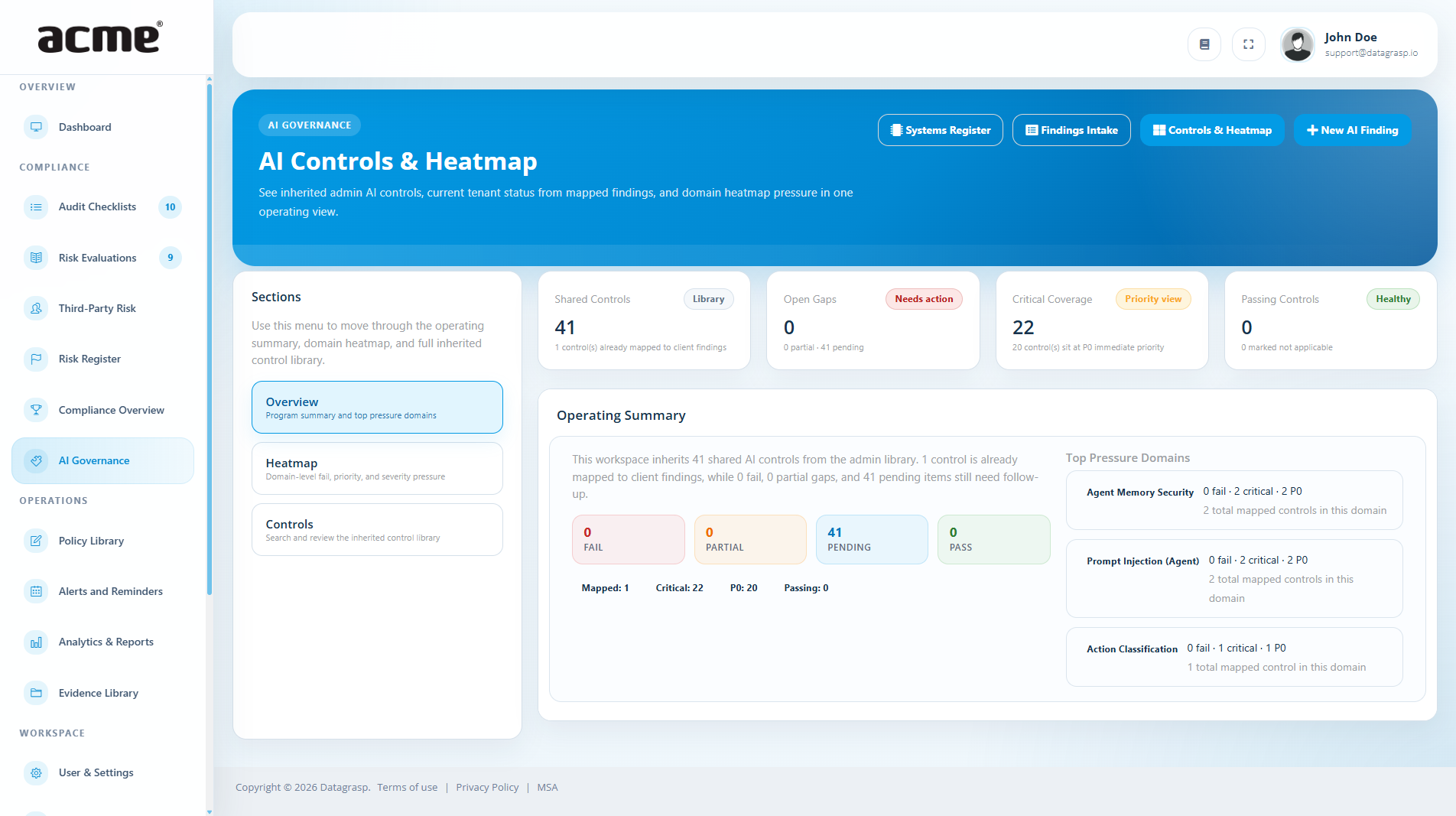
AI Governance gives your team one place to document AI use, assign accountability, and show that AI-related decisions are reviewed, controlled, and auditable. It is especially useful when you are working toward ISO/IEC 42001:2023 or building a more repeatable internal process for responsible AI oversight.
What this feature helps you manage
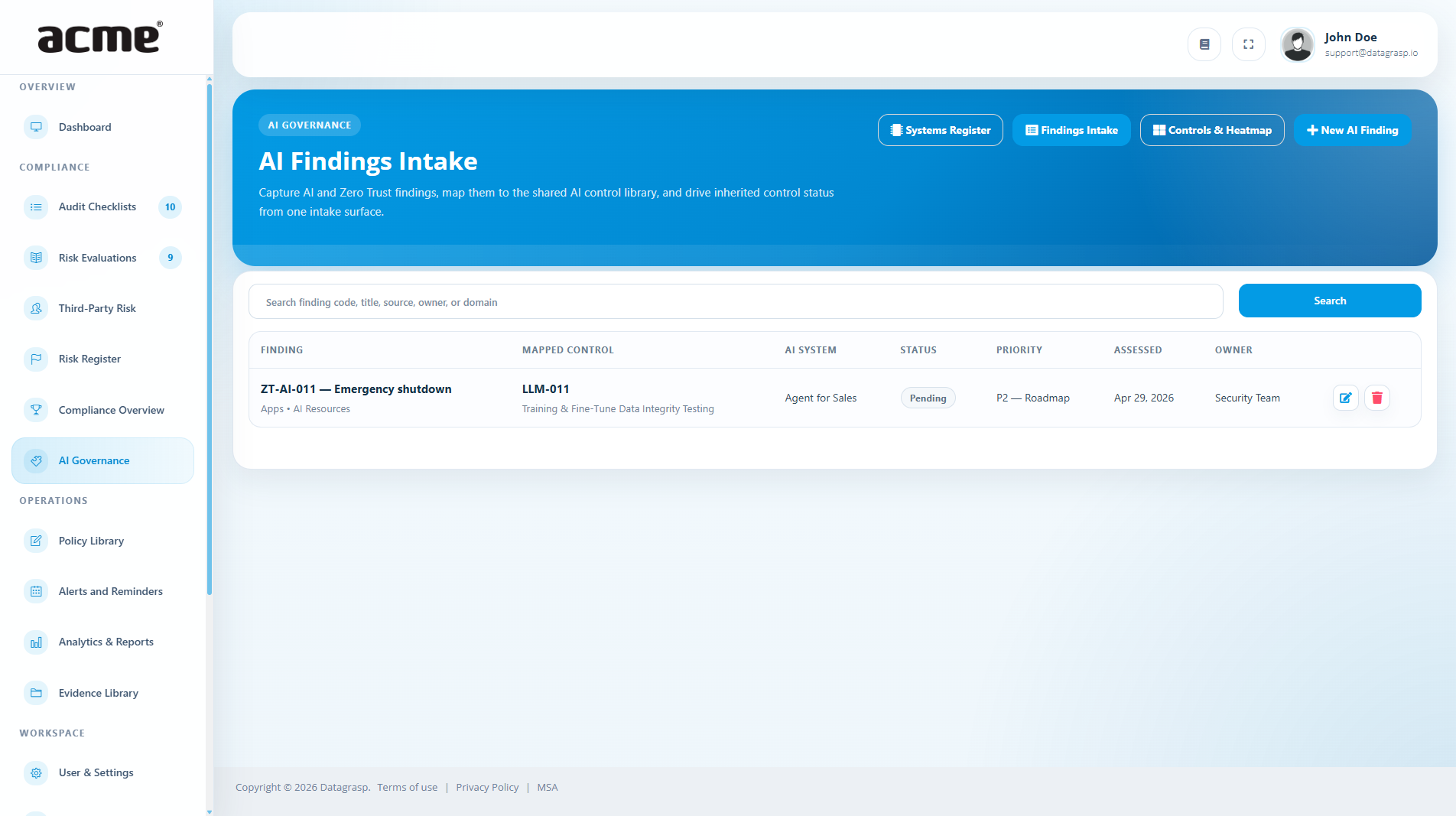
- AI system inventory: capture what tools, models, or workflows are in use, who owns them, and what business purpose they support.
- Governance details: track approvals, review checkpoints, human oversight, and the policies or standards each use case should follow.
- Operational context: record data sources, outputs, affected teams, and implementation notes so AI use is understandable during reviews.
How it fits into Compliance & Risk
- Supports framework work: use it alongside Control Assurance to organize evidence and governance activities tied to ISO/IEC 42001:2023 and related controls.
- Connects to risk management: when an AI use case raises a concern, document it clearly and escalate it into the Risk Register for tracking and remediation.
- Improves audit readiness: keep decisions, ownership, and artifacts in one place instead of scattered across policies, tickets, and meeting notes.
Suggested workflow
- Start by listing each active AI use case, tool, or model that matters to your organization.
- Add an owner, business purpose, and the review details your team expects before production or ongoing use.
- Attach supporting evidence and push any meaningful issues or gaps to the Risk Register so they are tracked to closure.

BCDR & Incident Response
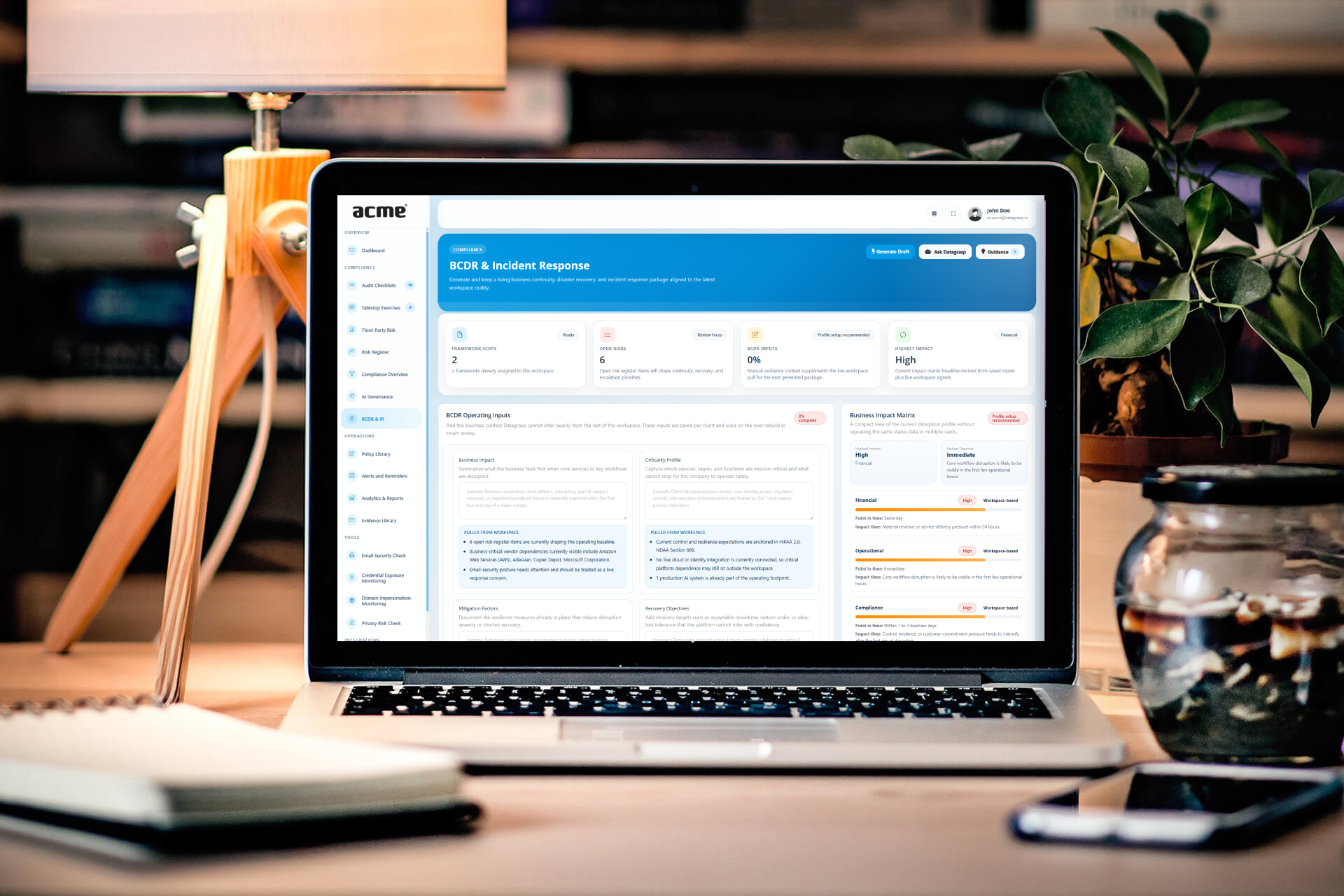
BCDR & Incident Response is a dedicated client workspace for building and maintaining a current business-continuity, disaster-recovery, and incident-response package from the organization’s operating context and supporting evidence.
- Current package: build or refresh the response package when material workspace information changes.
- Evidence-backed planning: keep response procedures connected to policies, controls, risks, and supporting records.
- Operational readiness: use the package alongside Tabletop Exercises to keep plans practical and reviewable.